View permissions
This dialog answers the question “What is this account actually allowed to do?”. It shows an account's global permissions and what applies in each of its folders. The only thing you can change here are folder exceptions; everything else is for viewing.
Check an account's permissions
- Open Settings › Overview › Users.
- In the account's row, click Permissions. The Permissions of name dialog opens.
- The Global tab shows the permissions that apply in every folder.
- Switch to the Folders tab to see the permissions in a particular folder.
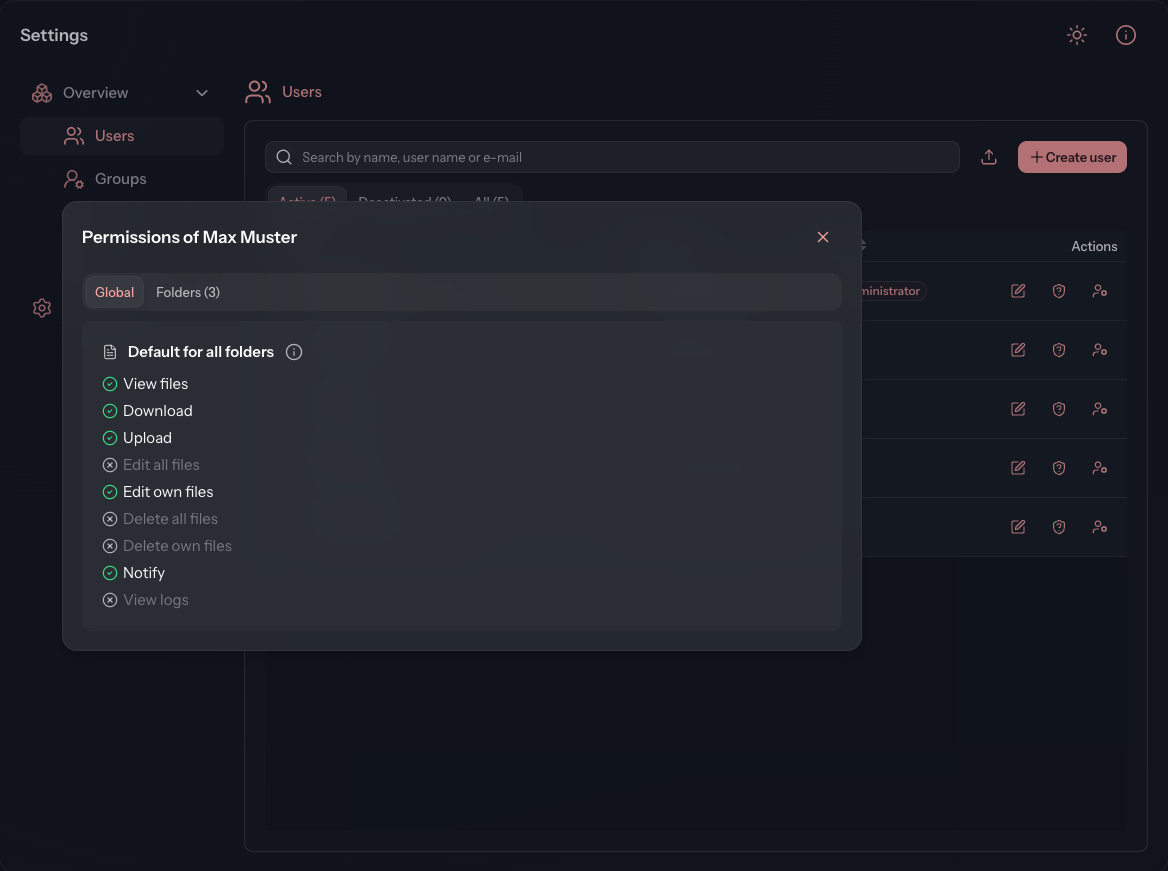
Global tab
The Default for all folders card lists the account's nine permissions: View files, Download, Upload, Edit all files, Edit own files, Delete all files, Delete own files, Notify and View logs.
These permissions apply in every folder that sets nothing of its own. Which folders and files the account sees at all is decided by its groups and assignments instead.
Folders tab
The tab heading counts how many folders the account reaches, for example Folders (3). The list shows each of these folders with its path:
| Column | Content |
|---|---|
| Folder | The folder's path. Click the row to expand the nine permissions that apply in this folder below it. Click again to collapse them. |
| Deviation | “none” if the folder changes nothing. Otherwise it says, for example, “2 differing”; the tooltip shows which permissions those are. Beside it is the Exception button. |
Exception opens this account's folder exception for this folder. It is the same dialog as on the folder's Members tab. The permission system explains how an exception works. If your tenant reserves folder exceptions for superadmins, Exception is greyed out for you.
Where to change permissions
| What | Where |
|---|---|
| Global permissions | Edit user dialog, Global permissions card |
| Permissions in one folder | Exception in this dialog, or the folder's Members tab |
| Which folders the account reaches | Its groups in Edit user, or the folder's Members tab |
Every user sees their own permissions in the profile under Permissions.