Change Password
You can change your password yourself at any time in your profile. You need your current password for this. If you have forgotten it, request a new one on the sign-in page (Forgot Password).
Change Your Password
- Click your name at the bottom of the navigation bar and choose Profile.
- Choose Security on the left.
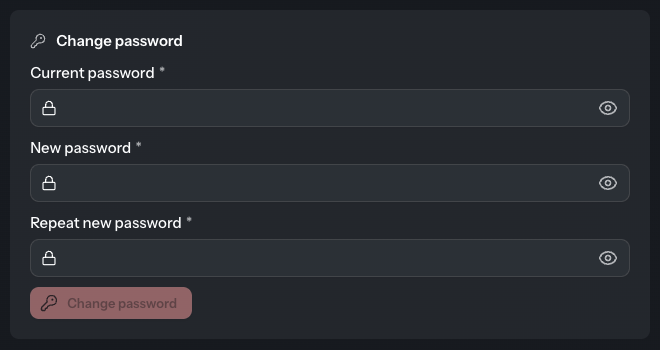
- In the Change password card, enter your current password in the Current password field.
- Enter the new password under New password. A list of requirements appears below it. Each requirement that is met gets a tick.
- Repeat the new password under Repeat new password.
- Click Change password.
The message “Password set successfully!” confirms the change, and the fields are cleared. From now on you sign in with the new password.
If the Button Stays Greyed Out
Change password can only be clicked once everything is right:
- The Current password field is filled in.
- The new password meets every requirement in the list (“All requirements met”).
- Both entries of the new password match.
If “Please check the password!” appears after the click, the current password was wrong.
Good to Know
- The requirements, such as the minimum length, are set by the operator of your DocSecBox.
- A password manager can recognise the fields, suggest a strong password and store it.