Delete
Delete files that nobody needs any more from their folder. You may only delete if you have the matching permission in the folder.
Permanent deletion
There is no recycle bin. A deleted file is gone immediately and permanently, together with all its share links and its history. This cannot be undone.
Deleting a file
- Click the file in the list.
- In the detail panel, click Delete file under Actions.
- In the Delete file dialog, check that it is the right file. The dialog names it.
- Click Delete permanently.
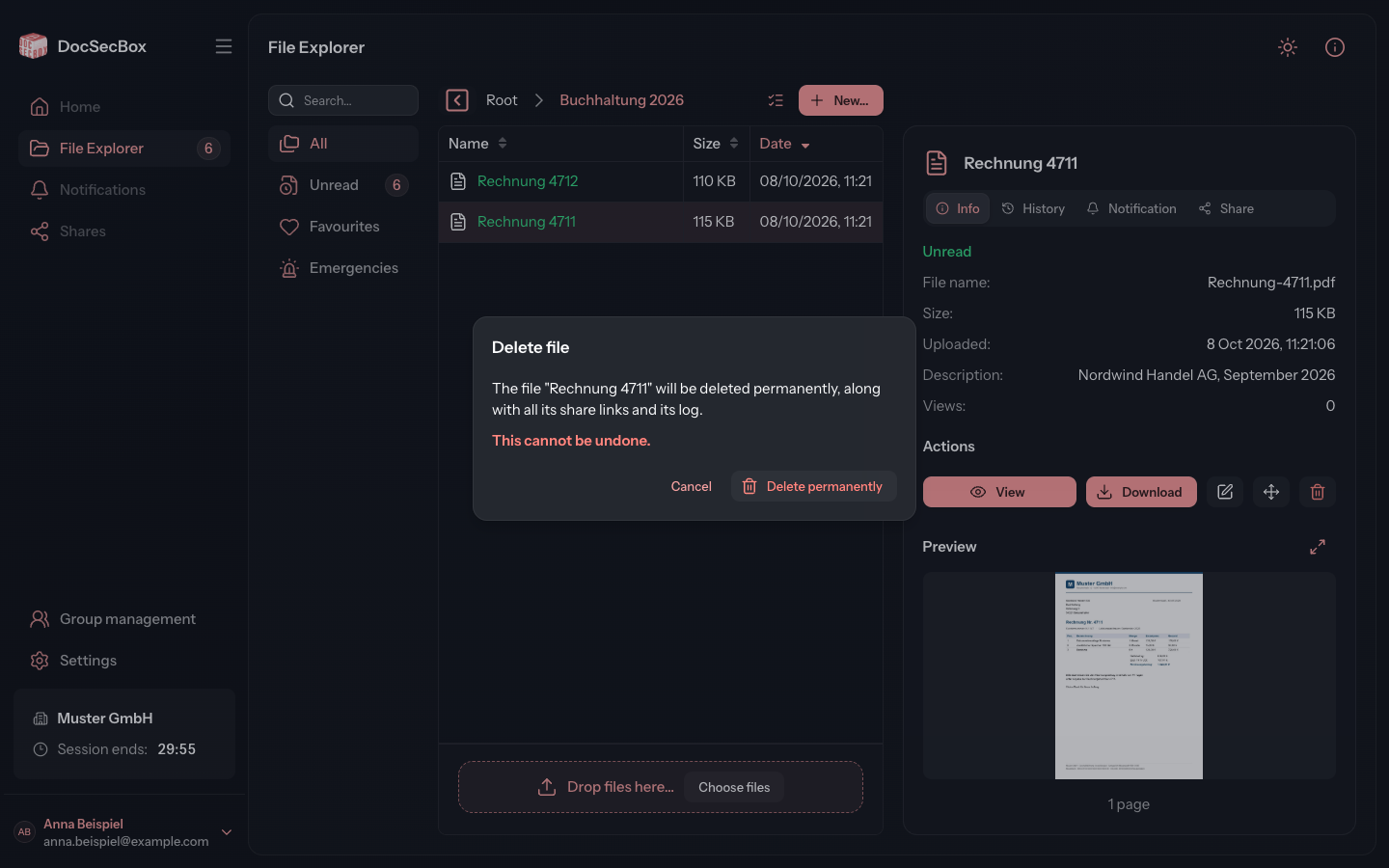
The DocSecBox reports File deleted., and the file disappears from the list.
Deleting several files
- Click Select several in the path bar and select the files.
- In the detail panel, click Delete.
- The Delete several files dialog states the number, for example "3 files will be deleted." Click Delete permanently.
Who may delete files
Deleting is a permission of its own in the folder: Delete own files allows deleting files you uploaded yourself, Delete all files allows deleting any file. See Members.
If you lack the permission, the button is greyed out. The hint on mouse-over reads Deleting this file is not permitted. or, in a multiple selection, At least one file may not be deleted.
Some folders protect their files until a certain date. The DocSecBox then reports This file cannot be deleted yet: its folder's retention rule still applies.
Automatic deletion
Files can also disappear without your doing anything:
- A folder can delete each file automatically a set number of days after it was first opened. This is set up in the Folder details.
- A single file can carry the setting Delete file after the next access. It is then deleted as soon as someone views or downloads it, see Download.
Reviewing deleted files
Administrators can see every deletion under Settings › Application › Objects › History of deleted files. See Objects.