Move
If a file is in the wrong folder, move it to another one. The file keeps its title, its share links and its history.
Moving a file
- Click the file in the list.
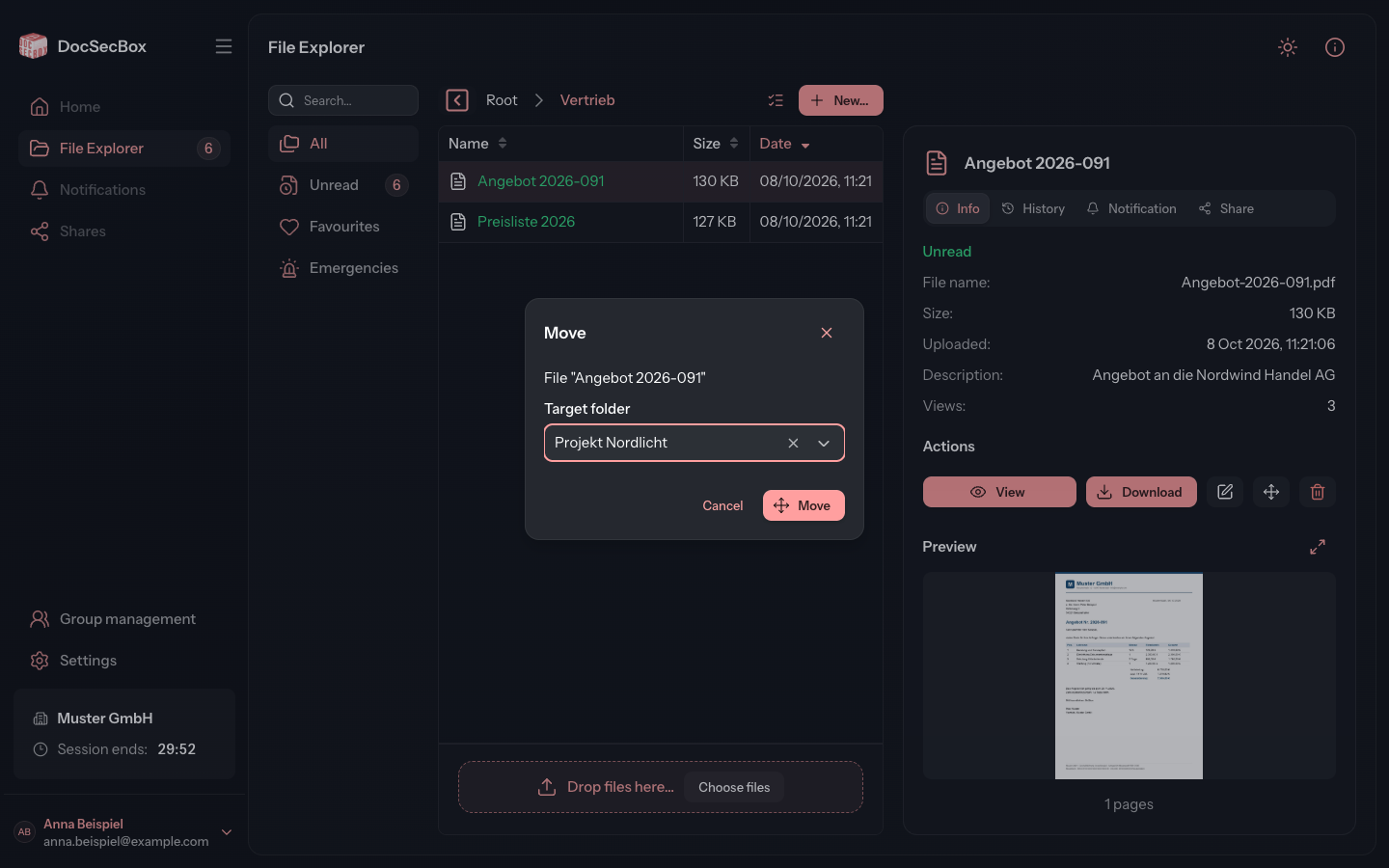
- In the detail panel, click Move under Actions.
- In the Move dialog, choose the Target folder.
- Click Move.
The DocSecBox reports Moved, and the file disappears from the old folder's list.
With the mouse it is quicker: drag the file in the list onto a folder. Or drag it onto a folder in the path bar, such as the parent folder. The file is moved straight away, without a dialog.
Moving several files
- Click Select several in the path bar and select the files.
- In the detail panel, click Move.
- In the Move several files dialog, choose the Target folder.
- Click Move.
Files that are already in the target folder stay unchanged. The dialog tells you how many there are.
Hints in the dialog
Below the target folder, the dialog can point out consequences. Read these lines before you confirm.
| Hint | Meaning |
|---|---|
| In the target folder, the retention rule makes the file eligible for deletion immediately | The target folder deletes files automatically after a set period, and that period has already run out for this file. Also appears when you drag with the mouse. |
| In the target folder at least one file would be due for automatic deletion straight away. | The same when moving several files |
| The target folder does not send a notification or an alert for a move | The target folder notifies about new files. It does not do so for a moved file. Inform the recipients yourself if needed, see Notification. |
Who may move files
To move a file you need two permissions:
- in the current folder, the permission to edit the file (Edit own files or Edit all files),
- in the target folder, the Upload permission.
If the first is missing, Move is greyed out with the hint Moving this file is not permitted. In a multiple selection the hint is At least one file may not be edited. If the second is missing, the DocSecBox stops with the message Access to destination folder denied! Operation aborted. The available permissions are listed under Members.
Good to know
- The file keeps its status, even if the target folder does not have that status in its list.
- To move a whole folder, use the folder details, see Folder details.