Third-Party Keys
With a third-party key, another program signs in to the DocSecBox on your behalf, for example to upload or retrieve files automatically. The program uses the application programming interface (API) for this. In your profile you see your keys, copy them and remove them when needed.
Paid add-on module
Third-party keys are only available with the paid add-on module API access.
How a Key Is Created
You do not create a key yourself. Your administrator registers the application and assigns it to your account (Settings › Application › API). The key then appears in your profile.
Copy a Key
- Click your name at the bottom of the navigation bar and choose Profile.
- Choose Security on the left. The Third party keys card lists Application name and Key for each application.
- In the key's field, click the copy icon (Copy key). The eye icon reveals the key.
- Paste the key into the other application.
Treat the key like a password: anyone who knows it can sign in as you.
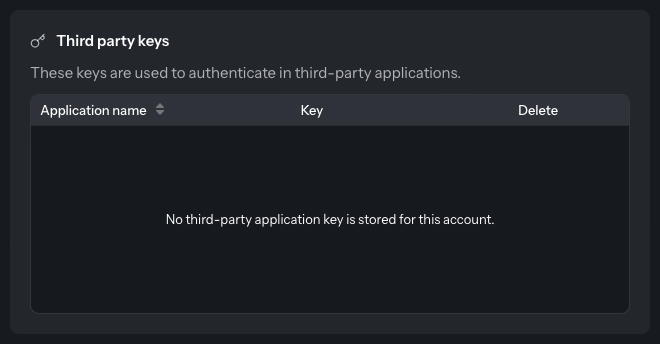
If no key is stored, the list reads “No third-party application key is stored for this account.”
Remove a Key
- In the application's row, click the bin icon in the Delete column.
- Confirm the question “Really remove the key for this application?” with Yes.
Sign-in no longer possible
Once the key is removed, the application can no longer sign in with your account. It only works again when your administrator issues a new key.