SMS
The DocSecBox sends text messages in two cases: with the password of a file share, and on an emergency alarm. On this page you store the access to your SMS provider and the texts of both messages. Sending text messages is not an add-on module, but you do need an account with an SMS provider.
Administrators only
Only administrators see this page. If Only super administrators are allowed to adjust program settings is switched on under Roles, only super administrators see it.
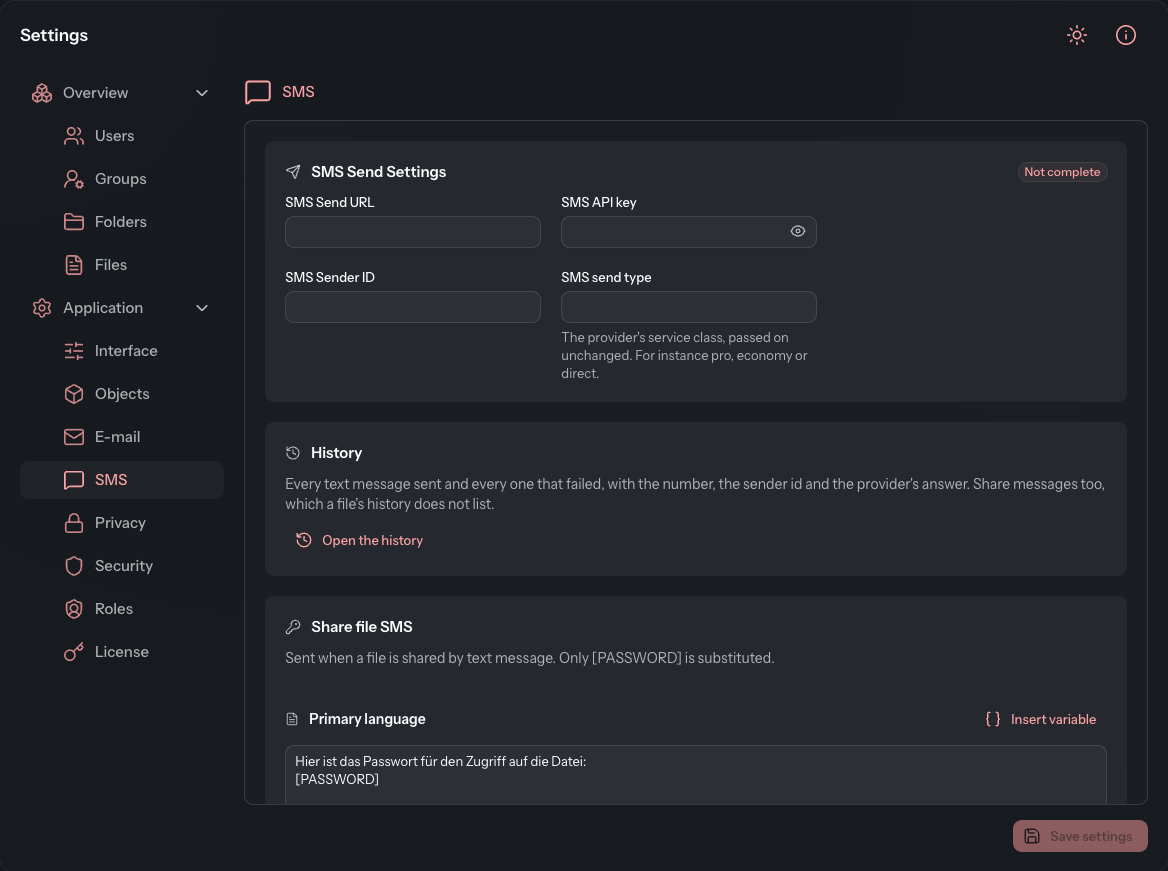
Set up sending text messages
- Open Settings › Application › SMS.
- In the SMS Send Settings card, enter your provider's details (see the table).
- Click Save settings.
The top right corner of the card shows Ready to send once all four fields are filled in and saved. If something is missing, it shows Not complete, and the DocSecBox sends no text messages.
| Field | Meaning |
|---|---|
| SMS Send URL | The address the DocSecBox hands the messages to. |
| SMS API key | The access key of your account with the provider. |
| SMS Sender ID | The sender name the message appears under for the recipient. |
| SMS send type | The provider's service class, for example pro, economy or direct. The DocSecBox passes the value on unchanged. |
View sent text messages
In the History card, click Open the history. The dialog shows every message sent on the Sent tab and every failed one on the Failed tab. Messages of a file share are listed here too, although a file's own history does not show them.
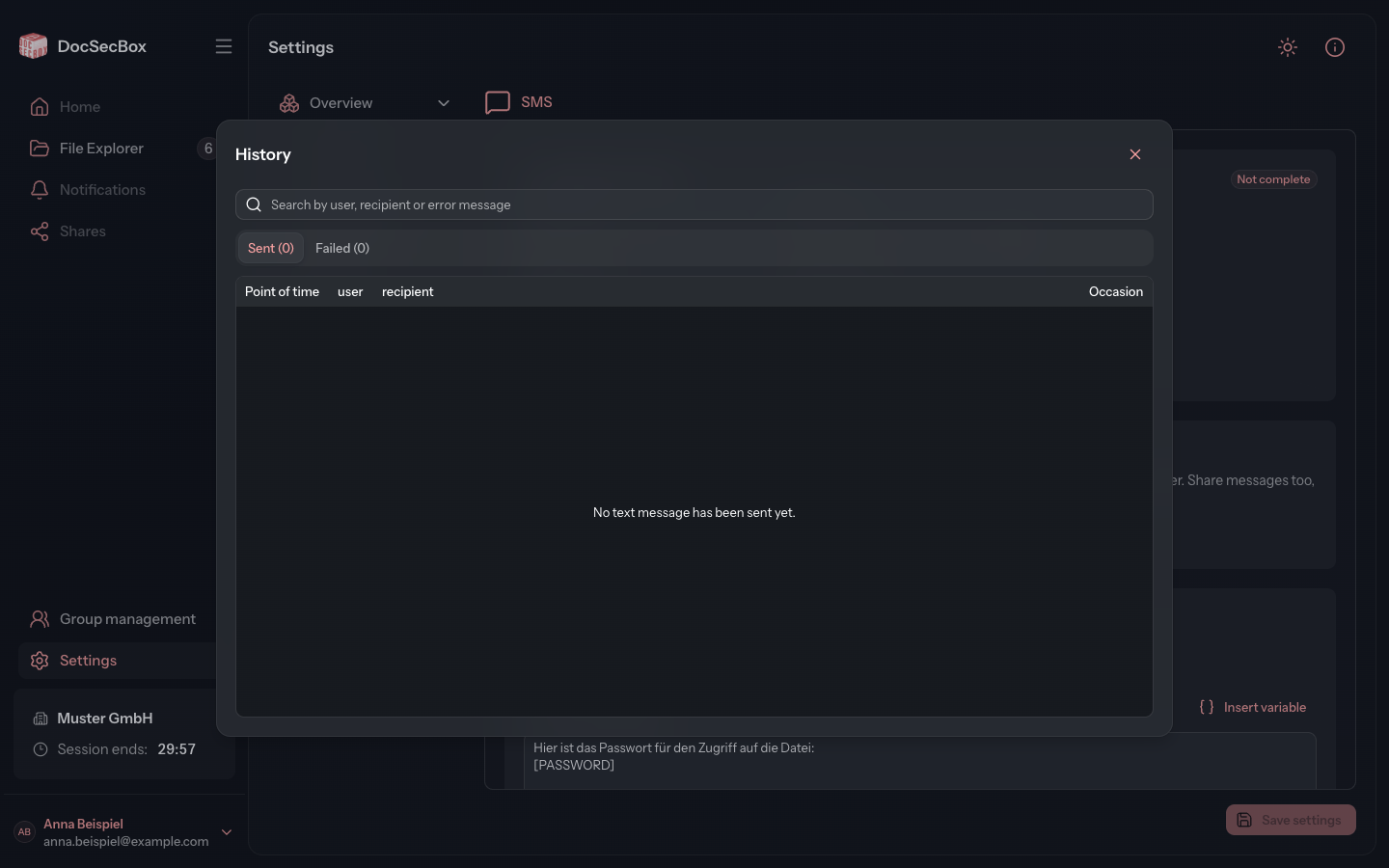
The columns give the Point of time, user, recipient and Occasion, and for failed messages the provider's Error message as well. Use the Search by user, recipient or error message field to find individual entries.
Edit the text messages
Both texts have one version for the Primary language and one for the Foreign language. You set which language is the primary one under Interface. Each version may be at most 669 characters long. Insert variable inserts a placeholder. Save the texts with Save settings.
| Card | When the message is sent | Placeholders |
|---|---|---|
| Share file SMS | When a file is shared by text message. | only [PASSWORD] |
| Emergency text message | On an emergency alarm, when the folder has no text of its own. | [FILE_TITLE], [FOLDER_NAME] |
The emergency text message only reaches recipients who have a mobile number stored. For the emergency text message, both language versions are mandatory fields.
Add an emergency text of its own for a folder
An emergency folder can send a text of its own instead of the default text.
- In the Emergency text message card, under Folders with their own text, click Add an own text.
- Choose the Folder and write the text in both languages.
- Click Save template.
The text applies at once, without Save settings. Use the Search for a folder field to find a folder in the list. Edit changes its text. Remove deletes the folder's own text, after which the folder sends the default text again.