On a smartphone
The DocSecBox also works in your smartphone's browser. You can do the same things there as on a computer. If the screen is 900 px wide or narrower, however, the interface is arranged differently. This page shows where you find what.
Opening the navigation
On a smartphone the navigation bar is collapsed. The header shows on the left, the name of the area next to it and the icons for colour mode and help on the right.
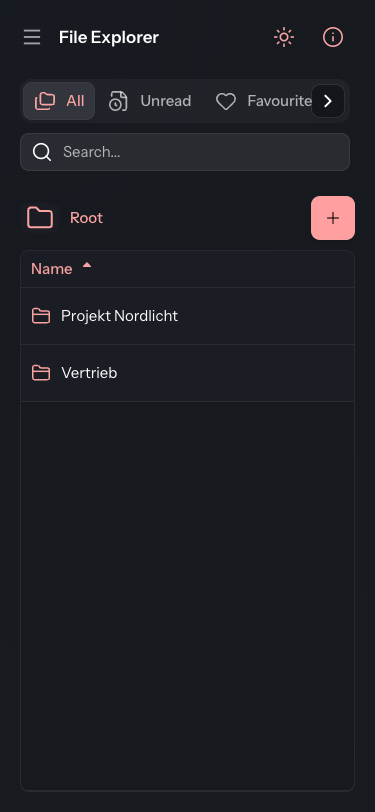
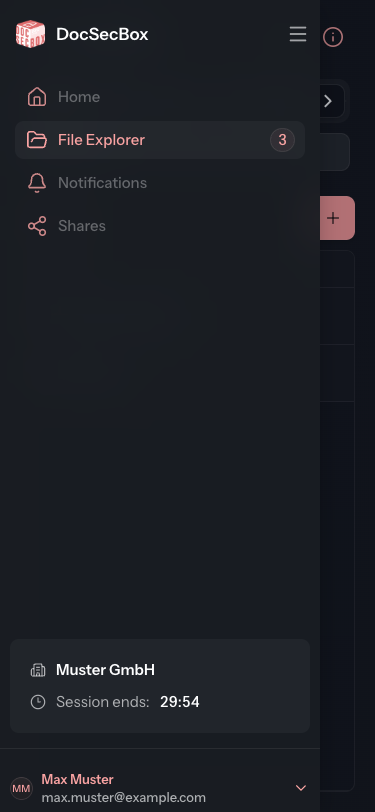
- Tap . The navigation bar opens.
- Tap the area you want to open.
The bar holds the same entries as on a computer, see The user interface.
In the File Explorer
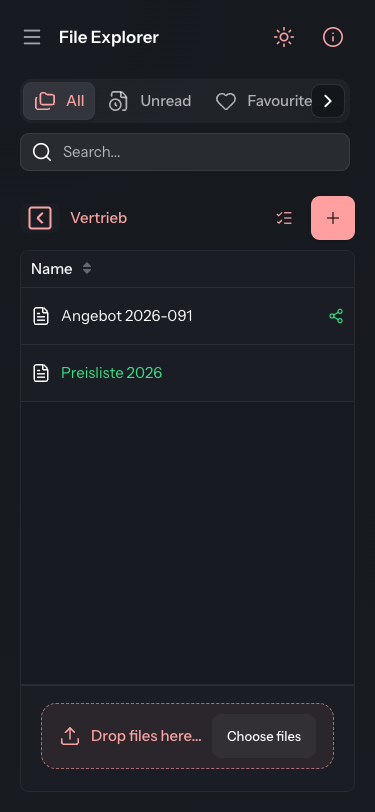
- The filters All, Unread, Favourites and Emergencies sit in a strip above the search field. Swipe the strip sideways to see all of them. An arrow at the edge shows there is more.
- The path bar shows the name of the folder you are in. New... becomes a round button with a +.
- The list only shows the Name column. Size and Date are left out.
Opening a file
Tap a file in the list. Its view opens as a page of its own on top of the list.
- The tabs Info, History, Notification and Share sit in a strip that you swipe sideways like the filters.
- View and Download are wide buttons. Below them are the icons for Edit, Move and Delete file.
- The × at the top right closes the view and takes you back to the list.
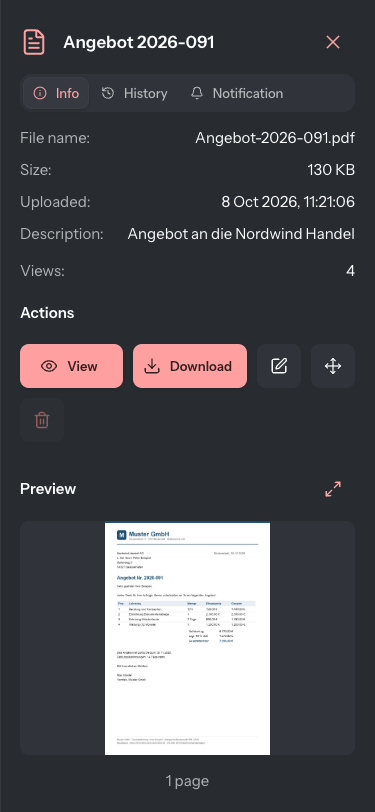
What the tabs and buttons do in detail is described under File view.
Profile
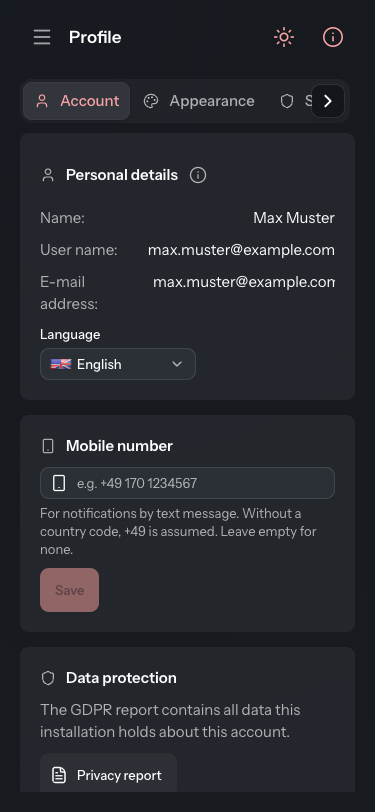
In the profile, the four areas Account, Appearance, Security and Permissions form a strip at the top instead of a column on the left. You swipe this strip sideways too.
All videos for the smartphone are collected under Videos.