File Explorer
The File Explorer holds every folder and file you are allowed to see. This is where you open files, upload new ones and see at a glance what is new.
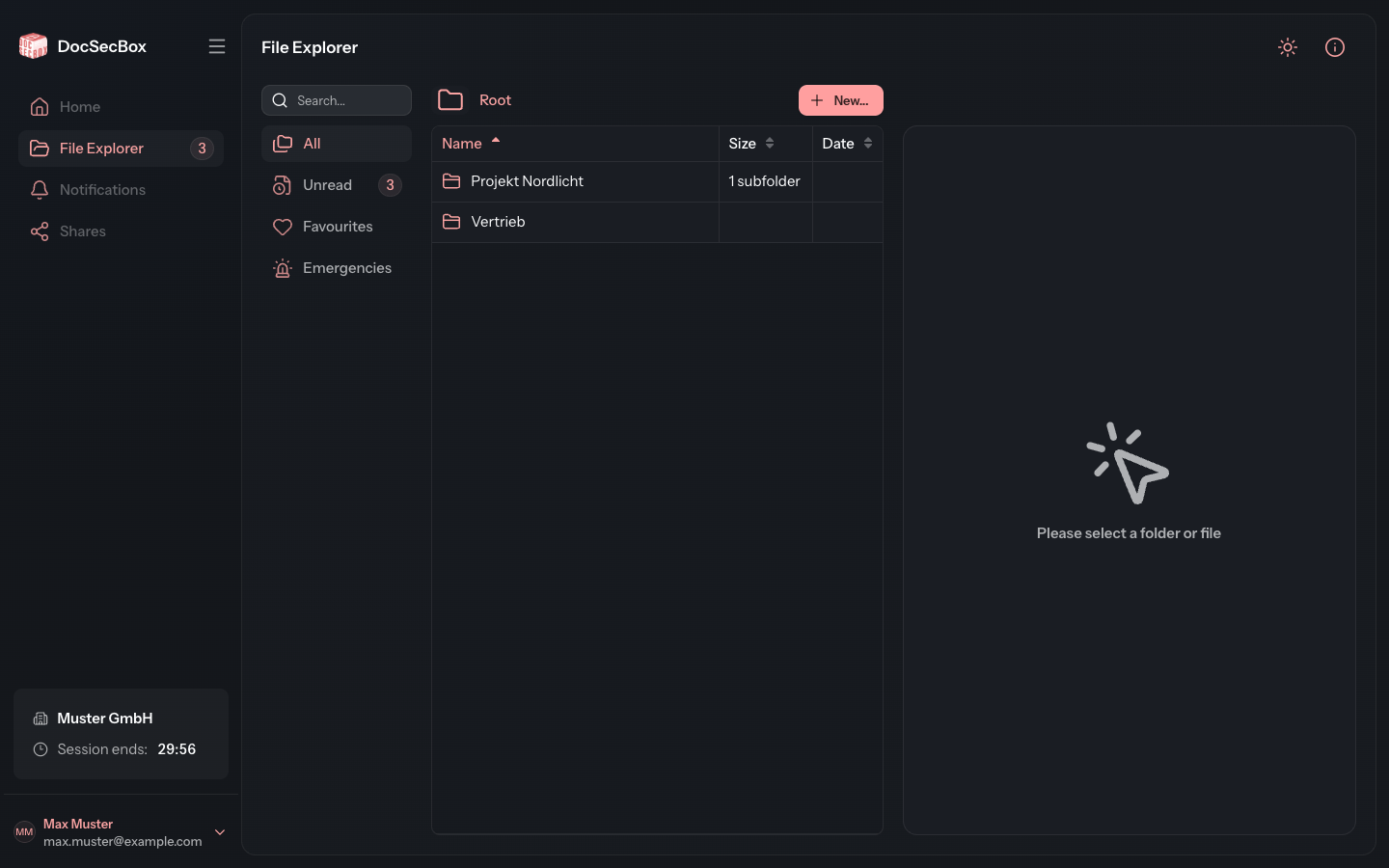
How the view is laid out
The explorer has three columns:
- On the left, the filter bar with the Search... field and the four filters All, Unread, Favourites and Emergencies.
- In the middle, the list of folders and files. Above it is the path bar, which shows the folder you are in.
- On the right, the detail panel. It shows the folder or file you click in the list. While nothing is selected, it reads Please select a folder or file.
Folders always come before files in the list. Files you have not opened yet appear in green.
Opening a folder
- Click a folder once. The detail panel shows its details.
- Double-click the folder to open it. The list then shows its contents.
When you move the mouse over a folder, a small arrow and the hint Double-click opens the folder appear. On a smartphone, a single tap opens the folder.
Clicking a file shows its details in the detail panel, see File details.
Going back up
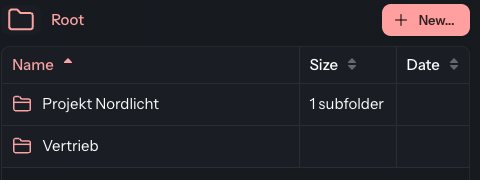
The path bar above the list starts with Root and then shows the way down to the open folder. To go back:
- Click One level up at the far left of the path bar.
- Or click a parent folder or Root in the path bar.
Your browser's back button works as well.
Sorting the list
Click a column header to sort by that column. A second click reverses the order. A third click restores the automatic order.
The DocSecBox remembers your choice and sorts every list that way, including after your next sign-in. Automatic means: by name at the root, newest files first inside a folder. You can set the same default in your profile, see Appearance.
| Column | Content |
|---|---|
| Name | Name of the folder or title of the file |
| Status | The file's done checkbox and status, see Status. Only appears when the folder offers them. |
| Folder | The folder the file is in. Only appears in lists that span several folders: search, Unread, Emergencies. |
| Size | Size of the file; for a folder, the number of its subfolders |
| Date | The file's last change or, if there was none, its upload date. The hint on mouse-over says which. |
| Views | How often the file has been opened. Only visible if you have switched the column on in your profile. |
You can also sort by Status and Folder, but the DocSecBox does not remember that choice.
Icons next to the name
Small icons after the name show special states. Move the mouse over one to read its hint.
| Icon | Hint |
|---|---|
| Public share active (folder) or Share link active (file) | |
| Automatic notification on upload is active | |
| Favourite, see Favourite folders | |
| Download disabled | |
| Will be deleted after the next view or download | |
| Not active | Recipients can neither see nor open this file. |
New folders and files
At the right of the path bar, New... opens a menu:
- At the root it contains Create folder and Upload files.
- Inside a folder, Create subfolder is added at the top.
You only see the entries for creating folders if you are allowed to create them. See Create a folder and Upload.
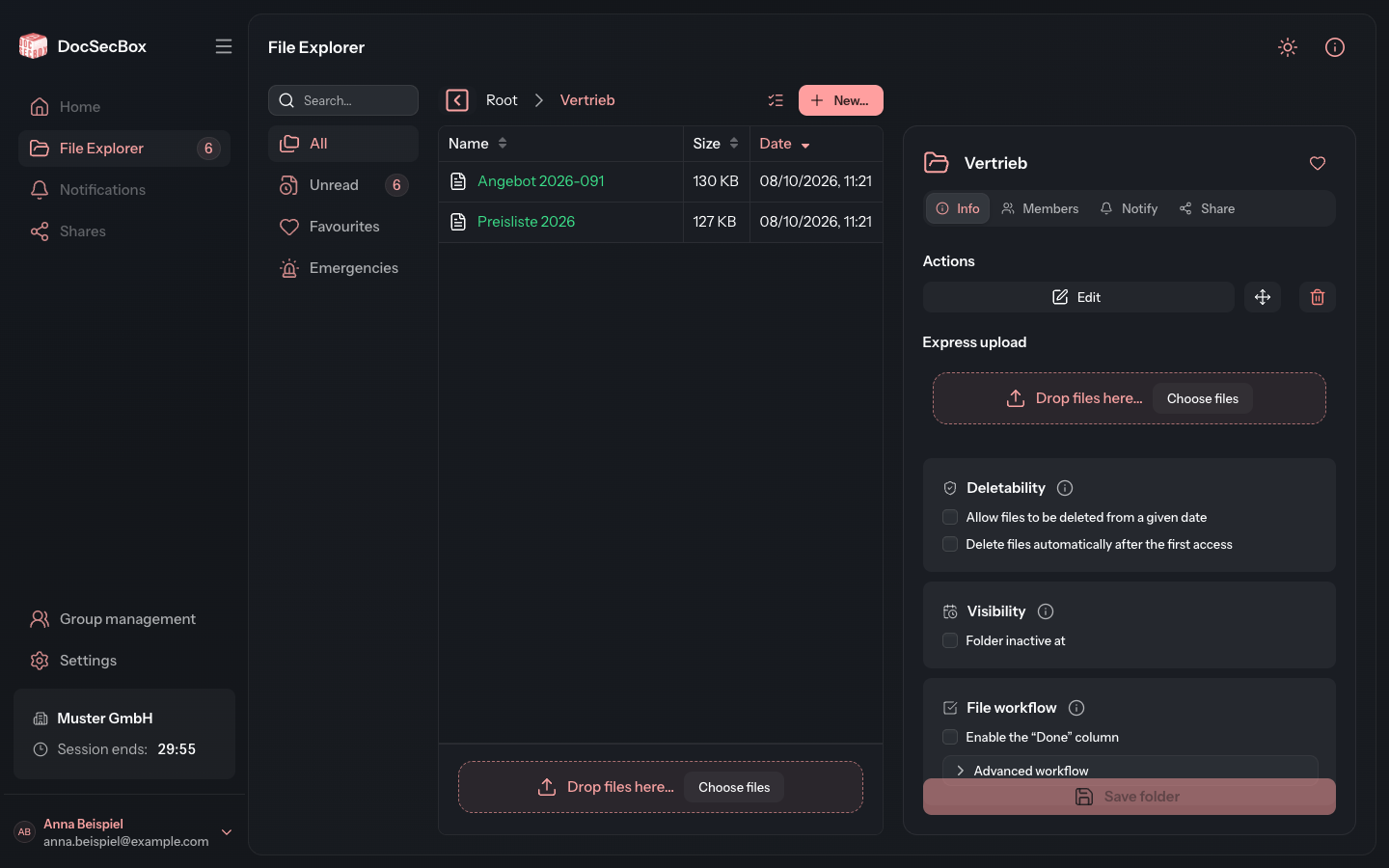
In a folder you may upload into, a highlighted band sits below the list, the express upload. Drag files from your file system onto Drop files here… or click Choose files. The DocSecBox uploads the files into the open folder straight away.
Selecting several files
To download, move or delete several files at once:
- Click Select several in the path bar. A checkbox appears in front of every file.
- Select the checkboxes of the files you want. Or click Select all files in the detail panel.
- Under Actions in the detail panel, choose what should happen to the selection.
- When you are done, click End multiple selection.
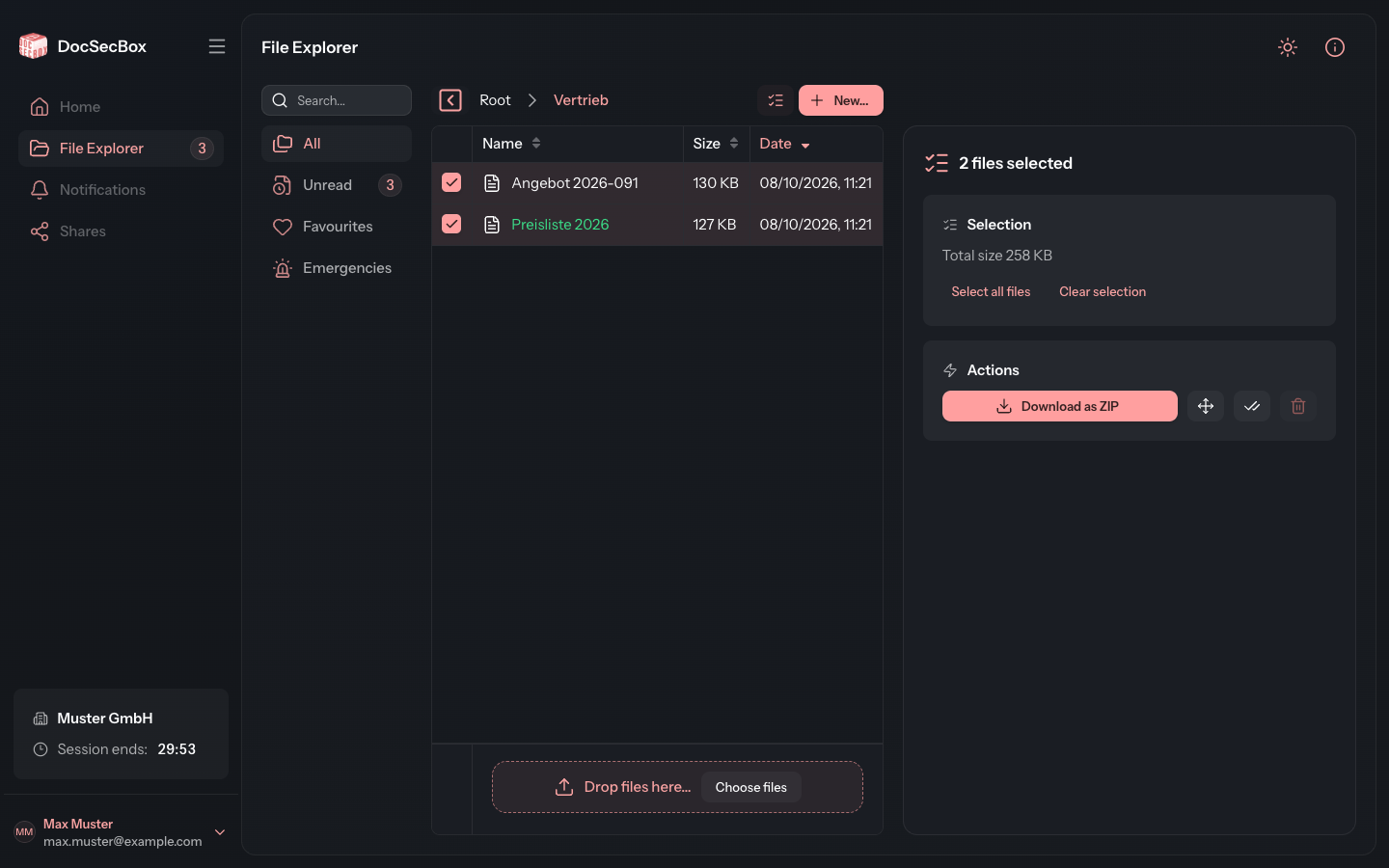
At the top, the detail panel shows how many files are selected, for example 2 files selected, and below that their Total size. Clear selection removes all ticks. Folders cannot be selected. Clicking a row still shows the details of that one file; the cross at the top right takes you back to the selection.
| Action | Effect |
|---|---|
| Download as ZIP | Downloads all selected files in one ZIP file, see Download |
| Move | Moves the files to another folder, see Move |
| Mark as read | Marks the files as read without opening them. Only appears if unread files are among them. |
| Delete | Deletes the files permanently, see Delete |
| Done and Status | Set the progress of all selected files, see Status. Only appear when the folder offers them. |
If an action is not allowed for at least one of the selected files, it is greyed out. The hint on mouse-over gives the reason, for example At least one file may not be deleted. If you may do nothing with any file in the list, Select several is missing altogether.