Share
A share lets you pass a single file on to someone who has no account in the DocSecBox. The recipient gets a link and a password. They open the link in a browser, enter the password, and can then view the file and, if you allow it, download it.
Administrators only
Only administrators see the Share tab.
Sharing a file is part of the DocSecBox's standard scope. Unlike the public share of a folder, it is not a paid add-on module.
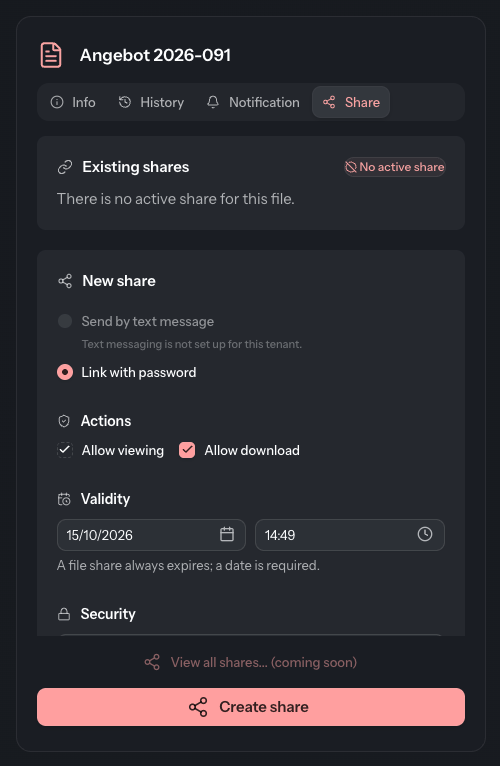
Create a share with link and password
With this kind of share, you pass the link and the password on to the recipient yourself.
- Select the file in the list and open the Share tab on the right.
- Under New share, choose Link with password.
- Under Actions, decide whether the recipient may also download the file (Allow download). Allow viewing is always selected.
- Under Validity, choose the date and time until which the link works. It is preset to seven days from now.
- Under Security, enter a password. If you leave the field empty, the DocSecBox generates a random one. The Generate password button in the field suggests one.
- Click Create share.
- The Share created dialog shows the Link and the Password. Copy both with Copy to clipboard and pass them on to the recipient, ideally by two separate channels.
Password shown only once
The DocSecBox shows the password in this dialog only. It cannot be looked up again afterwards, not even by an administrator. The link, on the other hand, can be copied at any time under Existing shares.
Create a share by text message
With this kind of share, the DocSecBox itself sends the link to the recipient by e-mail and the password by text message.
- Open the file's Share tab.
- Under New share, choose Send by text message.
- Under Validity, choose the date and time until which the link works.
- Under Security, enter the Recipient's email and the Recipient's mobile phone number.
- Click Create share.
A share by text message always allows downloading as well. The Allow download checkbox cannot be cleared here.
The option requires your administrator to have set up text messaging (see SMS). Otherwise it is greyed out, with “Text messaging is not set up for this tenant.” below it.
If sending fails, a warning appears instead of the success message. The share has been created all the same and is listed under Existing shares.
- “An error occurred while sending SMS!”: the recipient has received neither the text message nor the e-mail. Revoke the share and create a new one.
- “An error occurred while sending mail!”: the password arrived by text message, the link did not. Copy the link under Existing shares and pass it on yourself.
View and revoke existing shares
At the top of the tab, Existing shares lists every link of the file that is still valid. A file can have several shares at once, for example for different recipients. Each row shows:
- Valid until with date and time,
- two icons showing whether viewing and downloading are allowed,
- Copy to clipboard for the link,
- Revoke share (bin icon).
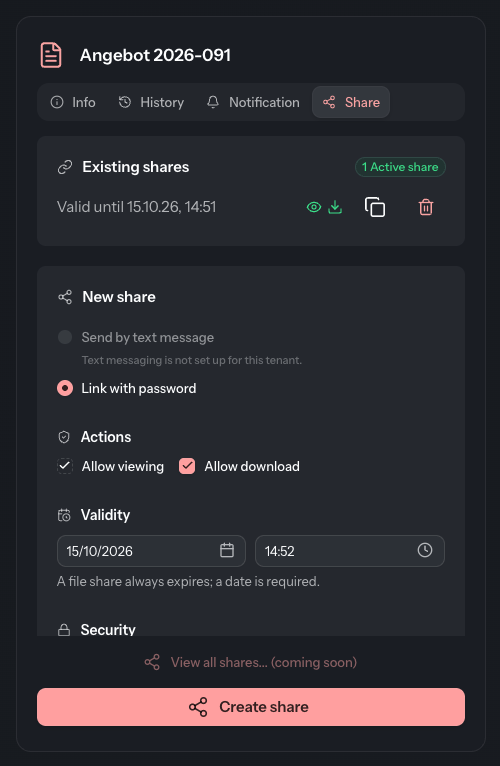
If there is no valid share, it says “There is no active share for this file.”
Revoke share takes effect immediately and without a confirmation: the link stops working from that moment. Expired and revoked shares disappear from the list. What happened to them is recorded in the file's history under Shares.
Good to know
- A file share always expires. A date in the future is required.
- The View all shares... (coming soon) button is still greyed out. An overview of all shares is not available yet.
- The DocSecBox records every view and download through the link in the file's history.