Edit user
Here you change an existing account: name and sign-in details, permissions, groups and the login info.
Edit an account
- Open Settings › Overview › Users.
- In the account's row, click Edit. The Edit user dialog opens with the current values.
- Change what you need.
- Click Save user.
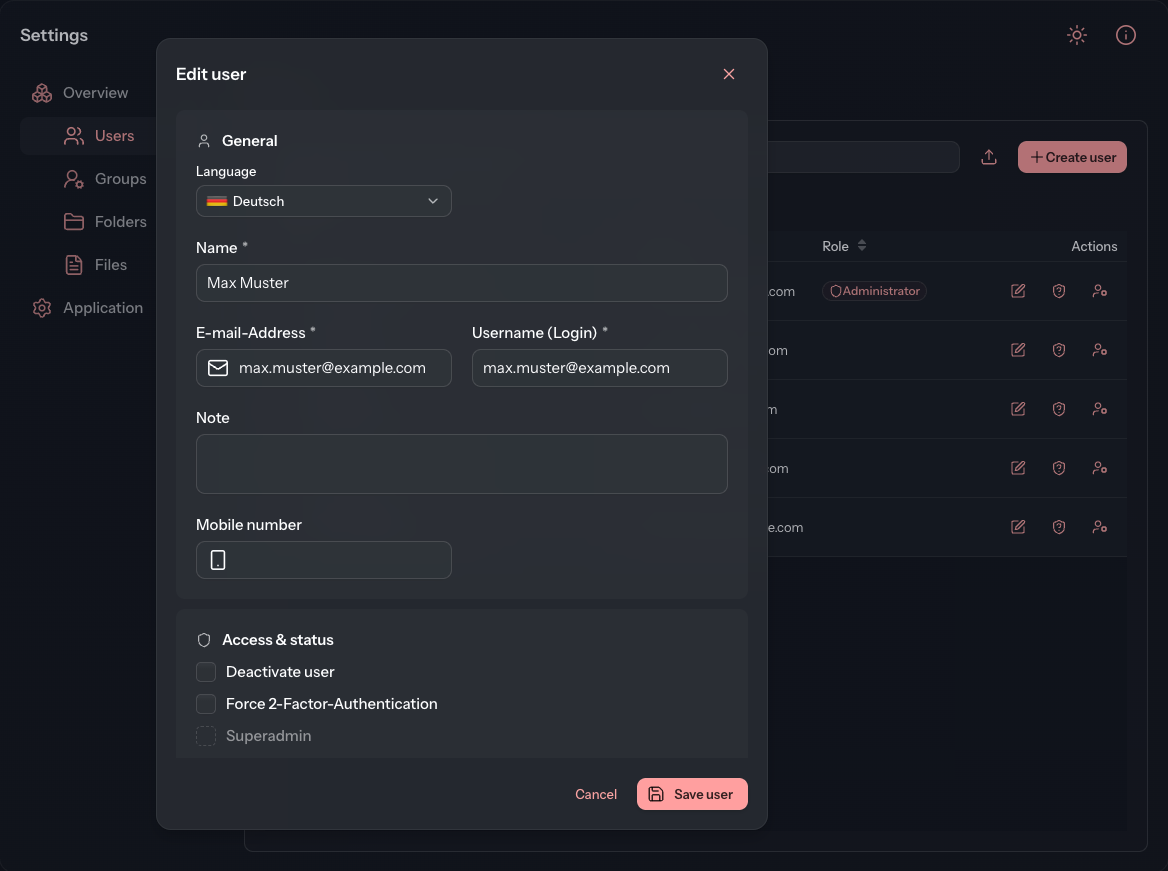
The dialog has the same fields as when creating an account. Create user explains each of them. A few things differ when editing:
- The Options card is missing. A group and folder for the account and the two mails exist only when creating it.
- Under Global permissions, the current state of each permission is marked: for allowed, for withheld.
- Under Groups, the dialog also lists the folders the account is assigned to directly, for example “Direct assignments: Customer XYZ”. You do not change these here but on the Members tab of the folder concerned.
- Password, second factor and sign-in lock are not reset here but through Manage account.
When fields are read-only
Your tenant can reserve editing accounts for superadmins. This is done under Roles with Only super administrators may edit user accounts. If you are not a superadmin, a notice appears at the top of the dialog and these fields are read-only:
- Name, Username (Login), E-mail-Address and Note
- Deactivate user, Force 2-Factor-Authentication and Superadmin
- all Global permissions
- the Login info
You can still change Language, Mobile number and Groups. You may also still create new accounts and reset passwords.
What the person can change themselves
Only an administrator changes Name, Username (Login) and E-mail-Address. The person can also change Language and Mobile number in their own profile.