Automatic Sign-Out
The DocSecBox signs you out when you have not done anything for a while. This keeps your account protected when you leave your desk. As long as you are working, the session stays open. You decide yourself how long the DocSecBox waits without activity.
Set the Sign-Out Time
- Click your name at the bottom of the navigation bar and choose Profile.
- Choose Security on the left.
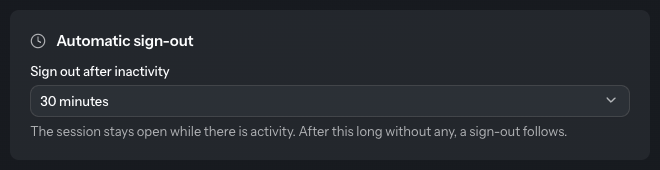
- In the Automatic sign-out card, choose the time you want in the Sign out after inactivity field.
The new time applies at once, there is nothing to save. The default is 15 minutes.
Which Times Are Available
You can choose times such as 5, 15 or 30 minutes and 1, 2, 4 or 8 hours, as far as your administrator allows them. The shortest and the longest permitted time are always in the list. Your administrator sets the permitted range under Settings › Application › Security.
Keep an Eye on the Remaining Time
At the bottom of the navigation bar, Session ends: shows the time remaining. Every action starts the time again from the beginning. When it runs out, the DocSecBox signs you out and you sign in again.
Good to Know
- Anything you click or open in the DocSecBox counts as activity. Just reading, for example in a preview left open for a long time, does not.
- The setting applies to the tenant you are currently working in.